Making your own theme
Vibranium themes are generated from a shared color palette.
A complete theme can be created by defining colors-extended.toml, adding metadata, and providing wallpapers.
The theme engine then generates application configurations from templates.
This page covers two approaches:
- Template-only themes — fast creation using generated configs.
- Traditional themes — manual application-specific customization.
Template-only method
A template-based theme requires three components:
colors-extended.tomltheme.info- At least one image in
backgrounds/
Step 1: create the theme directory
Create a new theme directory:
ccd is a Vibranium shell helper that creates a directory and enters it immediately.
Step 2: create theme metadata
Create theme.info in the theme root:
# Theme family name.
# Used as a submenu entry in the theme picker.
# Leave empty for standalone themes.
FAMILY=

# Theme variant name.
# Required. For standalone themes this is the theme name.
VARIANT=Solar

# Whether this is a light theme.
# Required.
LIGHT=false
Step 3: define the color palette
The main theme file is:
Every color value must be defined.
Useful tools:
- HTML Color Picker
- Tint & Shade Generator
- Color picker (Ctrl+Alt+C)
Click here to copy the empty tempalte
black_dim = ""
black = ""
black_bright = ""

red_dim = ""
red = ""
red_bright = ""

pink_dim = ""
pink = ""
pink_bright = ""

green_dim = ""
green = ""
green_bright = ""

yellow_dim = ""
yellow = ""
yellow_bright = ""

orange_dim = ""
orange = ""
orange_bright = ""

blue_dim = ""
blue = ""
blue_bright = ""

purple_dim = ""
purple = ""
purple_bright = ""

cyan_dim = ""
cyan = ""
cyan_bright = ""

white_dim = ""
white = ""
white_bright = ""

gray_dim = ""
gray = ""
gray_bright = ""

accent_dim = ""
accent = ""
accent_bright = ""

background_h = ""
background_0 = ""
background_1 = ""
background_2 = ""
background_3 = ""
background_4 = ""
background_5 = ""

foreground_h = ""
foreground_0 = ""
foreground_1 = ""
foreground_2 = ""
foreground_3 = ""
foreground_4 = ""
Our example:
Click to expand
black_dim = "#1C1710"
black = "#2C2418"
black_bright = "#403520"

red_dim = "#8C2E1C"
red = "#C44030"
red_bright = "#E85C42"

pink_dim = "#7A2845"
pink = "#B84068"
pink_bright = "#E05888"

green_dim = "#4A6828"
green = "#6E9040"
green_bright = "#96BC58"

yellow_dim = "#AA8000"
yellow = "#E8B800"
yellow_bright = "#FFD840"

orange_dim = "#B05A14"
orange = "#E88020"
orange_bright = "#FFA840"

blue_dim = "#1E3C70"
blue = "#2E60AE"
blue_bright = "#4A88D8"

purple_dim = "#4C2278"
purple = "#7040B0"
purple_bright = "#9C60D8"

cyan_dim = "#1A6478"
cyan = "#2894B0"
cyan_bright = "#3CC0D0"

white_dim = "#A09080"
white = "#D8C8A8"
white_bright = "#F0E4C8"

gray_dim = "#3C3028"
gray = "#6A5C4C"
gray_bright = "#9C8C7A"

accent_dim = "#9C7000"
accent = "#E8A800"
accent_bright = "#FFCC00"

background_h = "#090704"
background_0 = "#100C06"
background_1 = "#1A150D"
background_2 = "#261E13"
background_3 = "#352A1A"
background_4 = "#4C3C24"
background_5 = "#634F30"

foreground_h = "#F5EAD0"
foreground_0 = "#EAD9B8"
foreground_1 = "#D4C098"
foreground_2 = "#B8A478"
foreground_3 = "#9A8858"
foreground_4 = "#7A6C42"
The palette contains:
- 11 color families with dim, normal, and bright variants.
- 6 background shades.
- 5 foreground shades.
- Accent colors.
These values are consumed by the theme templates to generate application configurations. For a complete example, see the default Nightfox theme.
Step 4: add wallpapers
Add wallpapers inside:
It's recommended to keep filenames orderd like so:
Example:
The filename is not important.
The final structure:
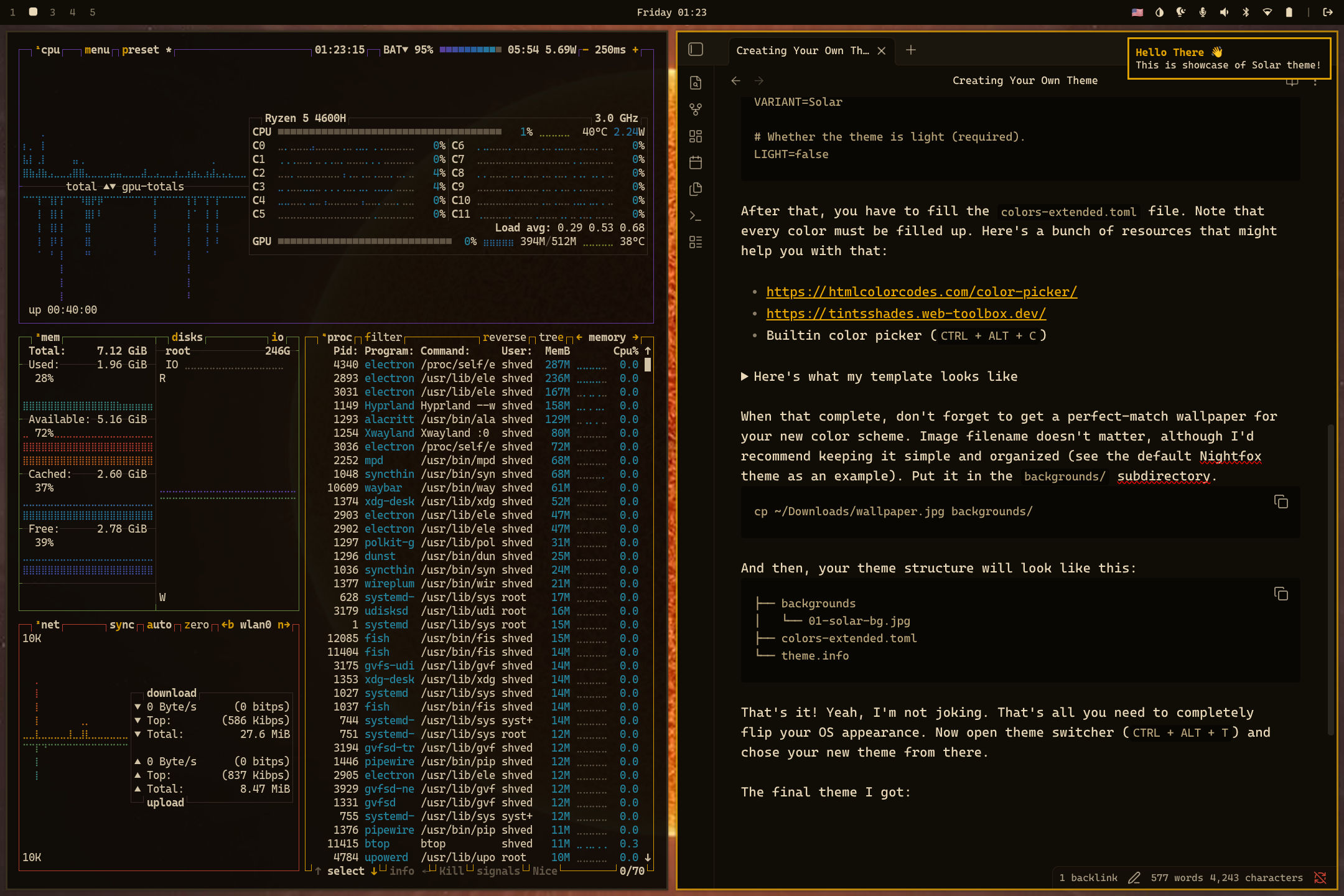
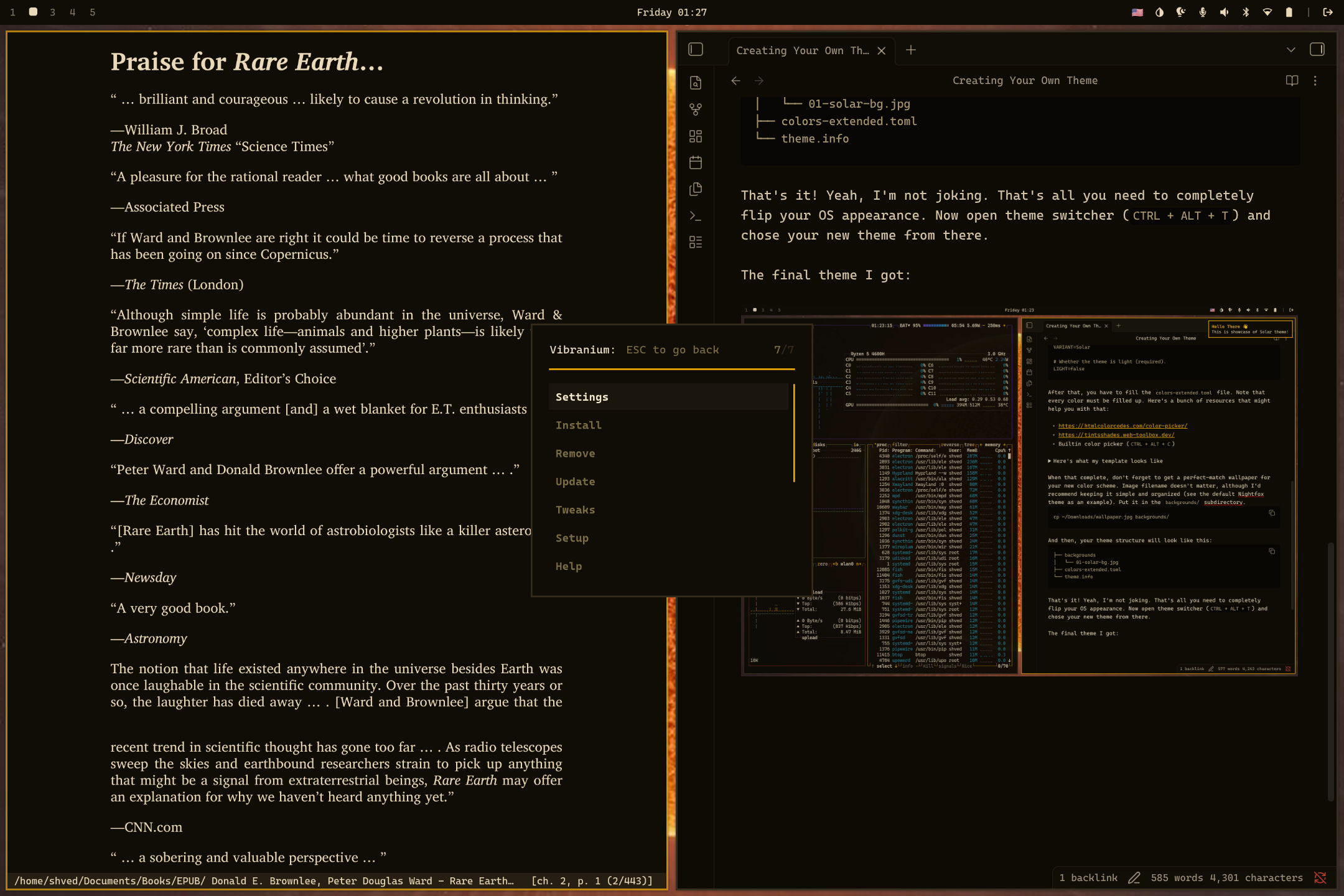
The result
Step 5: apply the theme
Open the theme picker and select the new theme. The theme engine generates the required application configurations and applies the wallpaper.
Generated configurations can include:
- GTK
- Qt
- terminal themes
- Waybar
- Rofi
- notifications
- lock screen
- editor integrations
Palette quality matters
The generated result depends heavily on the quality of the color palette. Carefully tuned colors produce significantly better results.
Traditional method
The traditional method allows per-application customization.
colors-extended.toml is still required because Vibranium generates base configurations regardless.
Additional files can be included in the theme directory to override generated configurations:
Examples of manual overrides:
This method provides more control when a generated template does not match the desired result.
The default Nightfox theme is an example of a theme using additional manual configuration.
Publishing themes
Community themes use the same directory structure.
Repositories should follow the naming convention:
Themes can then be installed through:
Vibranium Menu -> Install -> Theme
See Themes for installation details.