Keyboard shortcuts
Vibranium is designed around keyboard navigation.
The default layout follows a simple principle: keys are chosen to be memorable.
Most shortcuts use the first letter of the action they perform whenever practical.
For example, T for Theme, W for Wallpaper, and U for Utilities.
Layout philosophy
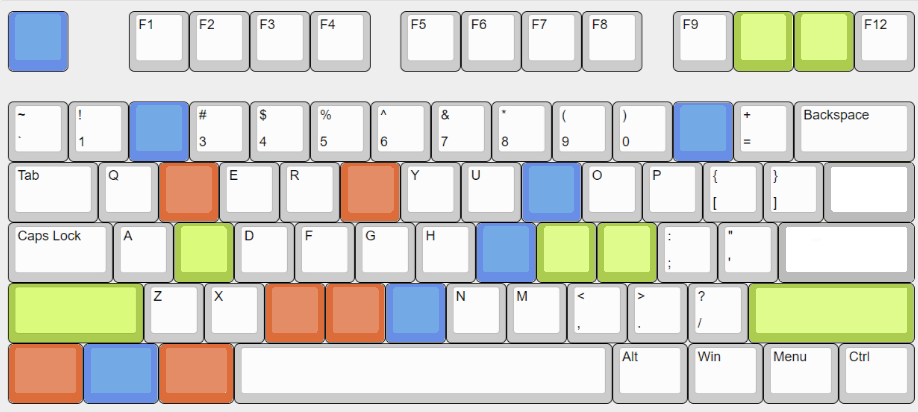
The shortcut layout is organized into two primary groups.
- Blue — Super (primary modifier)
- Green — additional keys used together with Super
- Orange — Ctrl Alt (Vibranium-specific actions)
The keyboard is also divided into two logical halves:
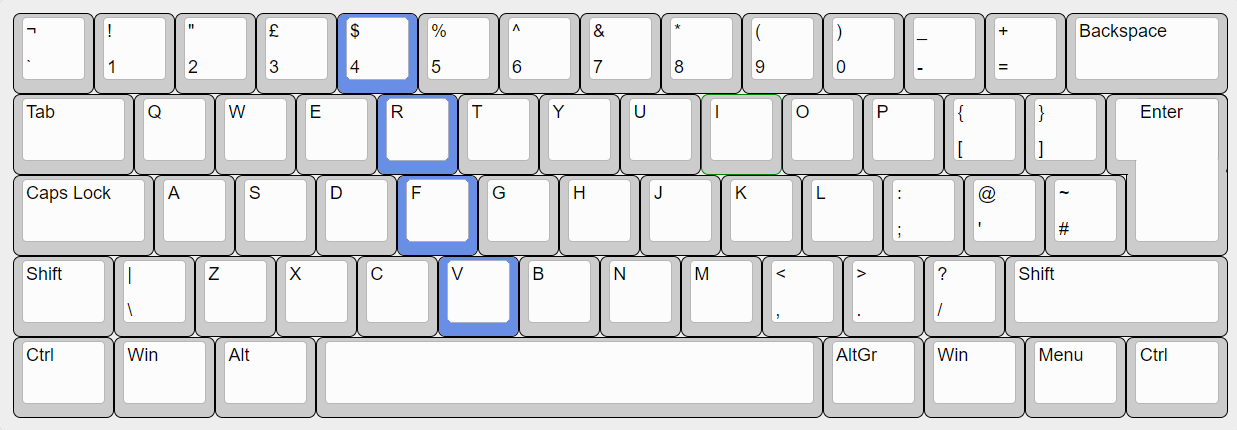
The left hand primarily holds the modifiers while the right hand performs the action key.
Most shortcuts can therefore be executed with minimal hand movement.
Primary shortcuts (SUPER)
These shortcuts cover everyday desktop usage.
| Shortcut | Action |
|---|---|
| Super+Q | Close active window |
| Super+Shift+Q | Force close active window |
| Super+F | Toggle fullscreen |
| Super+Shift+F | Toggle floating |
| Super+A | Application launcher |
| Super+E | File manager |
| Super+V | Clipboard history |
| Super+Shift+V | Clear clipboard |
| Super+Shift+S | Screenshot: region |
| Super+Shift+A | Screenshot: active window |
| Super+Shift+Z | Screenshot: entire screen |
| Annotated screenshot | |
| Super+M | Toggle microphone mute |
| Super+B | Cycle power profiles |
| Super+. | Emoji picker |
| Super+Enter | Terminal |
| Super+Shift+Enter | Floating terminal |
| Super+Esc | System monitor (btop) |
| Ctrl+Shift+Esc | System monitor (btop) |
| Super+` | GPU monitor (nvtop) |
XF86Calculator |
Calculator |
| Super+G | Toggle window group |
| Super+Ctrl+G | Lock or unlock window group |
| Super+R | Resize mode |
| Super+1 … Super+0 | Switch workspace |
| Super+Shift+1 … Super+Shift+0 | Move window to workspace |
| Super+Tab | Cycle workspaces |
| Super+Alt+Left / Super+Alt+Right | Previous/next workspace |
Window movement uses the IJKL cluster:
- Super+J / Super+L / Super+I / Super+K — change focus
- Super+Shift+J / Super+Shift+L / Super+Shift+I / Super+Shift+K — move the active window
Arrow keys are available as an alternative.
Vibranium shortcuts (CTRL + ALT)
These shortcuts open menus and Vibranium-specific functionality.
| Shortcut | Action |
|---|---|
| Ctrl+Alt+V | Vibranium menu |
| Ctrl+Alt+U | Utilities menu |
| Ctrl+Alt+T | Theme picker |
| Ctrl+Alt+W | Next wallpaper |
| Ctrl+Alt+C | Color picker |
| Ctrl+Alt+R | Recording menu |
| Ctrl+Alt+P | Password manager |
| Ctrl+Alt+L | Lock session |
| Ctrl+Alt+Del | Power menu |
| Ctrl+Alt+F | Freeze or unfreeze a process |
| Super+Alt+Esc | Alternate power menu |
Hardware keys
Standard multimedia keys (XF86*) behave as expected.
Media playback, volume, brightness, and similar controls work through the dedicated hardware keys provided by the keyboard.
Some media keys continue to function while the session is locked.
Mouse bindings
Floating windows behave as in most desktop environments.
- Drag with the left mouse button to move a floating window.
- Drag with the right mouse button to resize a floating window.
In addition, Super + mouse wheel adjusts the playback volume of the focused application.
Note
Some applications do not persist per-application volume levels between launches. In those cases, volume must be adjusted again after restarting the application.
Window groups
Window groups allow multiple windows to occupy the same position and be cycled without changing workspace.
The most important shortcuts are:
- Super+G — create or toggle a group
- Alt+J / Alt+L — switch between grouped windows
- Alt+1 … Alt+0 — jump directly to a grouped window
- Super+Ctrl+G — lock or unlock the group
See Window groups for complete documentation.
Listing all shortcuts
The complete list of active shortcuts can be viewed in two ways.
From the menu: Vibranium Menu -> Help -> Keybindings, or from a terminal:
Both methods display the currently active configuration, including user-defined shortcuts.
Customizing shortcuts
Default bindings are defined by Vibranium and can be overridden without modifying the installation.
See Customizing keybindings for details.